Your futures trading companion
Meet Atium Bot
Atium Bot goes with you to the chart, drafts the trades you place for you to review, and brings them home to Atium. When you want a second opinion, it takes them to your Discord server.
Atium is an independent product and is not affiliated with, endorsed by, or sponsored by TradingView. TradingView is a trademark of its owner.

Read its face
One look tells you what it's doing
The robot in the corner of your browser window changes with what it's doing. Pick a state to see it.
Signed in and ready. With auto-detect on, it watches for the order confirmations of your own trades.
Atium Bot for Chrome
Beside your chart, for TradingView traders
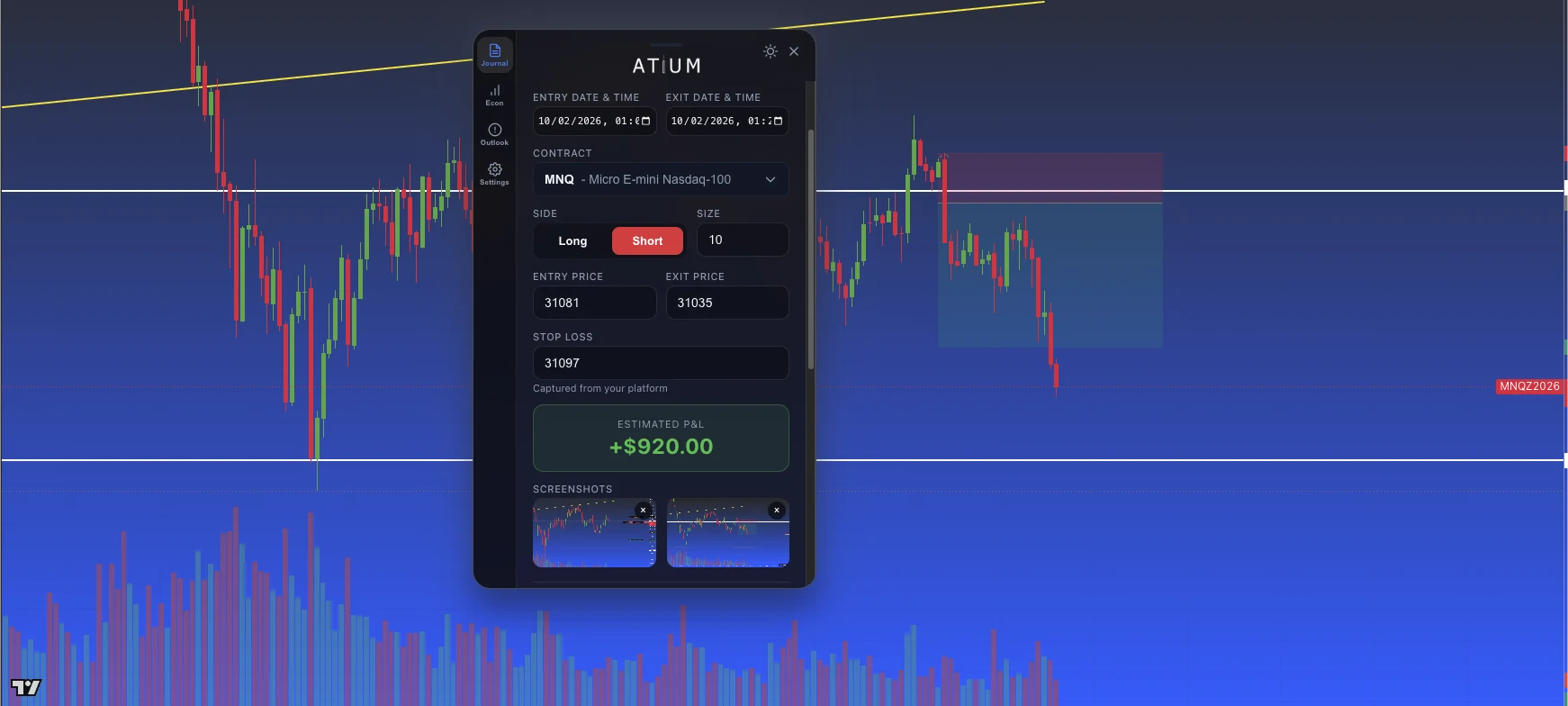
A compact panel in your browser, next to your chart. Turn on auto-detect and Atium Bot notices the order confirmations for your own trades, then drafts each one with entry and exit chart screenshots for you to review and save.
Drafted from your order confirmation. Review it, then save.
Charts by TradingView
Opt-in auto-detect
Each trade you place is drafted as it fills, ready for you to review. Nothing is saved until you submit.
Entry and exit screenshots
Chart screenshots at entry and exit, attached to the draft or captured in one click.
Live and backtest
Kept apart from the start. TradingView Bar Replay counts as backtesting, and the form has a Live/Backtest switch.
Economic calendar
Prior, forecast and actual values for the week's releases, before you trade.
AI market outlook
An ES/NQ outlook on weekdays, around 9 AM ET and again after the close.
Psychology tags
Log how you felt during the trade while it's still fresh.
It runs in Chrome on your computer. It doesn't run in the platforms' desktop or mobile apps.
Add to ChromeAtium Bot for Discord
Second opinions from your trading group
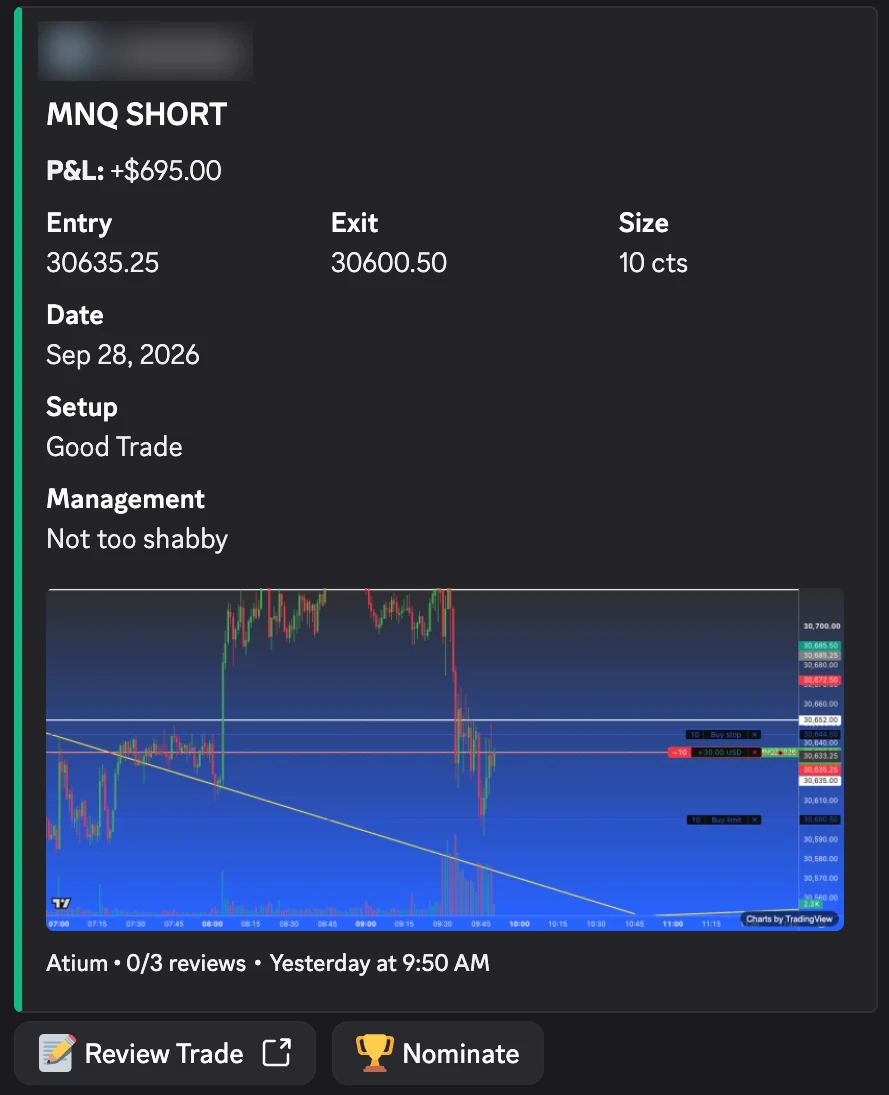
Share a reviewed trade to your Discord server and Atium Bot posts its card there. Other traders click Review Trade and finish a short review on atiumtrade.com, up to three reviews per trade. There's no official Atium server: the bot works in any server whose admins add it.
Charts by TradingView
For server admins
Add Atium Bot to your server
You need the Manage Server permission on that server.
Run the setup command
Run
/atium setup channel:#trade-reviewto choose where trade cards post. Optional settings on the same command pick the Trade of the Week channels.Its commands can take up to about an hour to appear after it joins.
Optional: let it pin the finals board
Give the bot Manage Messages in the Trade of the Week channel.
For members
Connect Discord in Atium
Use the Discord account you're on that server with.
Share a trade
In the trade's review, choose Complete Review, then Get feedback, and pick the server. Each trade goes to one server.
Review someone else's trade
Click Review Trade on their card, then finish the review on atiumtrade.com. Reviewers need a linked Discord account and an Atium membership.
Trade of the Week
A weekly highlight for your server. During the week, members nominate standout trades from their cards. The top five become finalists, everyone votes, and Atium Bot announces the winner.
Nominating and voting need a linked Discord account and an Atium membership. Admins can turn the announcements off.
Illustration with simulated data: Atium Bot's Trade of the Week finals board in a Discord channel lists five finalists. kai.trades, MES long, finishes with 14 votes; nq_morgan, MNQ short, 11; delta.rae, MNQ long, 8; jt_futures, MGC long, 5; sam.orb, MES short, 3. The bot then posts the winner: kai.trades, with 14 votes, beating 4 other finalists in this server.
Illustrative demo · simulated data
What it can and can't touch
Built to stay out of your account
Atium Bot never places, modifies or cancels orders. It only records the trades you place yourself, and it never touches your login, cookies or account balance.
In Chrome, it uses
- The order confirmations shown for your own trades, and only when auto-detect is on
- A screenshot of your chart at entry and at exit
- Its own sign-in to Atium, so your drafts reach your journal
It runs only on TradingView pages, and on the Atium Bot page in Atium.
It never
- Places, modifies or cancels an order
- Touches your platform login, cookies or account balance
- Saves a trade you haven't reviewed and submitted
- Grades or analyses your trades. You do the reviewing.
In Discord
- Posts only the trades members choose to share, to the one server they pick
- Sends no direct messages
- Doesn't read or store your server's chat messages
- Reviews are written on atiumtrade.com, not in the channel
Get set up
A few minutes, once
Atium Bot for Chrome
Add it to Chrome
From the Chrome Web Store, on your computer.
Sign in
Open the Atium Bot panel and sign in with your Atium account.
Open a chart
Open a TradingView chart and the Atium Bot panel appears beside it.
Turn on auto-detect
It's off until you switch it on. Every draft waits for you to review and save it.
Atium Bot for Discord
A server admin adds the bot and runs /atium setup. Members link Discord in Atium, then share reviewed trades with Get feedback.
FAQ
Questions about Atium Bot
Bring Atium Bot to your next session
Start your 14-day free trial, then add Atium Bot to Chrome and sign in from its panel. A card is required to start, and you pay nothing if you cancel before the trial ends.